DJI FCC RC 2 (+120 m Removal) — Installation Guide
Related product: DJI FCC RC2 (+120 m Limit Removal)
IMPORTANT: Follow the steps in order. If an older version of this app is installed on the controller, uninstall it first. If you get stuck, our WhatsApp support line at +90 850 308 46 50 is happy to help.
What you need
- A DJI RC 2 controller with a charged battery
- 1 MicroSD card inserted in the controller
- A Type-C (USB-C) data cable and a Windows computer
- An internet (Wi-Fi) connection on the controller for the first sign-in
Step 1 — Turn on the controller and connect to Wi-Fi
- Turn on the controller and wait for the DJI Fly home screen.
- Swipe down from the top of the screen, press and hold the Wi-Fi icon and connect to a network.
Step 2 — Insert the SD card
- Insert a MicroSD card into the controller.
- Tap the SD card notification, set the card up and wait until it is ready to use.
Step 3 — Connect the controller to your PC
- Connect the controller to a Windows PC with a USB-C (Type-C) data cable.
- This PC → DJI RC 2 appears on the PC; the SD card is listed as disk.
Step 4 — Download the installation file
- Download LabDron-DJI-RC2-Kurulum.zip with the Download button on My account → My activations. The username and password for the app are shown on the same page.
- Right-click the ZIP file and choose Extract All. It contains two files: PaketYukleyici.apk and LabDron-RC2-Installer.apk.
Step 5 — Copy the files to the SD card
- Copy both APK files to This PC → DJI RC 2 → disk and wait for the copy to finish.
Step 6 — Check the controller firmware
- Download and install the Windows version of DJI Assistant 2 (Consumer Drones Series) from DJI's Download Center.
- Open it and select DJI RC 2. If the controller isn't on the latest firmware, update it. This guide was made on V10.00.0900.
Step 7 — Install the package installer and LabDron Kurulum
- On the controller, open the SD card from its notification; the disk folder opens.
- Tap PaketYukleyici.apk first and install it. Tap Continue on the unknown-app warning.
- Then install LabDron-RC2-Installer.apk the same way. When it finishes, the LabDron Kurulum app opens.
Step 8 — Run LabDron Kurulum
This app removes the current DJI Fly from the controller and installs LabDron DJI Fly in its place. Removing it deletes the current DJI Fly's local settings and flight records, so back them up first if needed. Disconnect the controller from the drone during installation.

- Tap the button to remove the current app and install.
- When asked whether to replace DJI Fly, tap Continue.
- On the Android screen that opens, turn on Allow from this source and go back.
- Accept Android's uninstall prompt, then tap the button to install the LabDron app and accept the install prompt.
- When the app reports that LabDron is installed and verified, tap the button to open the LabDron app.
Step 9 — Open DJI Fly
- DJI Fly prepares its data on first launch. On the authorization screen, tap Authorize All.
- Sign in with your DJI account.
- In the LabDron tour, choose your language and follow the steps. The round LabDron button on the screen opens the control panel.
Step 10 — Sign in to LabDron
- In the LabDron sign-in window, enter the username and password from My activations.
- When the app says a restart is required, tap the button to close the app and open DJI Fly again. FCC becomes active.
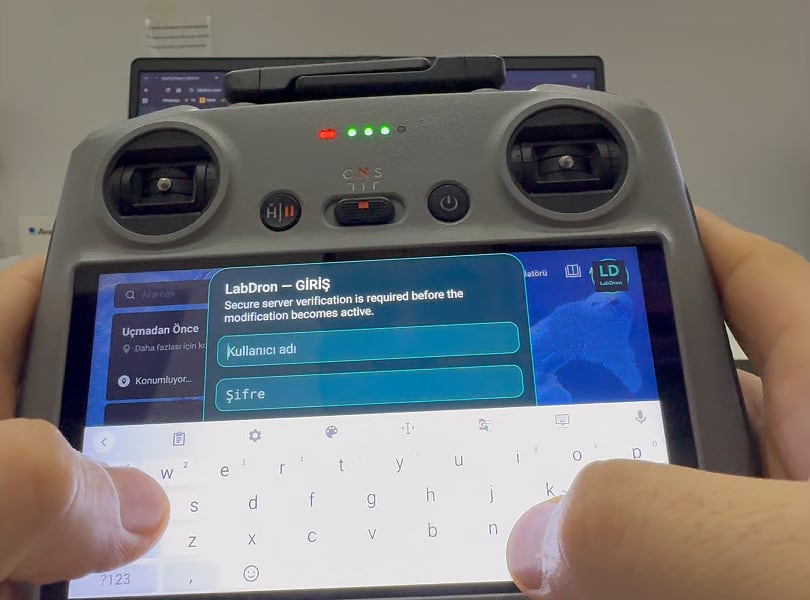
Once sign-in is confirmed, the license is tied to this controller and the app then works offline. To keep the license active, connect the controller to the internet and open the app at least once every 30 days; otherwise FCC turns off and you'll be asked to sign in again.
Step 11 — Connect your drone
Turn on your drone and connect it to the controller. Open the LabDron Control Panel with the round LabDron button on the screen to manage settings.

Having trouble?
- If disk does not appear on the computer, remove and reinsert the SD card or try a different cable.
- If the SD card notification does not appear, restart the controller.
- If you see a "Device change" warning, the license is bound to another controller; contact the support line to request a device reset.