LabDron DJI RC (RM330) Installation Guide
Related product: LabDron DJI RC (RM330) — FCC Only
IMPORTANT: Follow the steps in order. Do not unplug the cable or turn off the controller during installation. If you get stuck at any point, you can get help from our WhatsApp support line at +90 850 308 46 50.
What you need
- DJI RC (RM330) controller with at least 50% battery
- A Windows 10 or 11 computer
- A Type-C (USB-C) cable that supports data transfer
- The same Wi-Fi network for both the controller and the computer
- The controller firmware must be version 01.03.2600
Step 1 — Connect the controller to Wi-Fi and to the computer
- Turn on the controller. Swipe down from the top of the screen to open the quick settings, then press and hold the Wi-Fi icon.
- Select the network your computer is connected to and enter its password. If the controller and the computer are not on the same network, the program cannot find the controller.
- Connect the controller to the computer with the Type-C cable.
Step 2 — Check the controller firmware
- Download and install the Windows version of DJI Assistant 2 (Consumer Drones Series) from the DJI download center.
- Open the program, sign in with your DJI account and select the DJI RC controller shown in the list.
- In the firmware update section, if the controller is not on version 01.03.2600, select this version and update it with the Upgrade button.
- When the update is complete, close DJI Assistant 2.
Step 3 — Install the LabDron PC program
- Download the installer with the Download for Windows button on the LabDron PC page.
- Run the downloaded LabDron-Desktop-Setup file. If Windows shows an "Unknown publisher" security warning, click Run.
- Installation takes a few seconds; when it finishes, LabDron Desktop opens automatically.
Step 4 — Confirm that the controller is connected
When the program opens, it automatically searches for the controller on the same network on the RM330 Controller screen. Once the controller is found, it shows Controller connected, with the controller's serial number and module version below. You can change the app language from the language menu at the top right of the LabDron Desktop window.
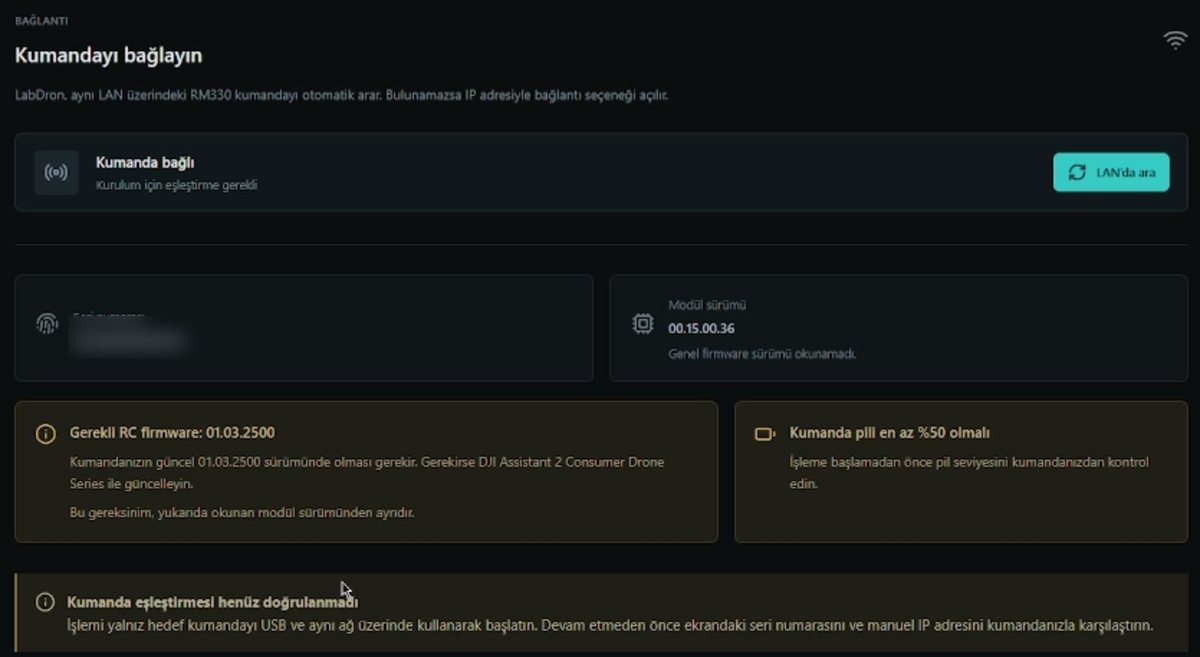
- If the controller is not found, press the Search LAN button. If it still cannot be found, the program offers the option to connect via IP address.
- Check that the serial number on the screen matches your own controller's.
Step 5 — Verify your licence
- If you bought the licence from labdron.com, press the Sign in with LabDron button. On the page that opens in the browser, click Allow and return to the app.
- If you bought the licence from a dealer, enter the code in the Dealer activation code field and click Activate.
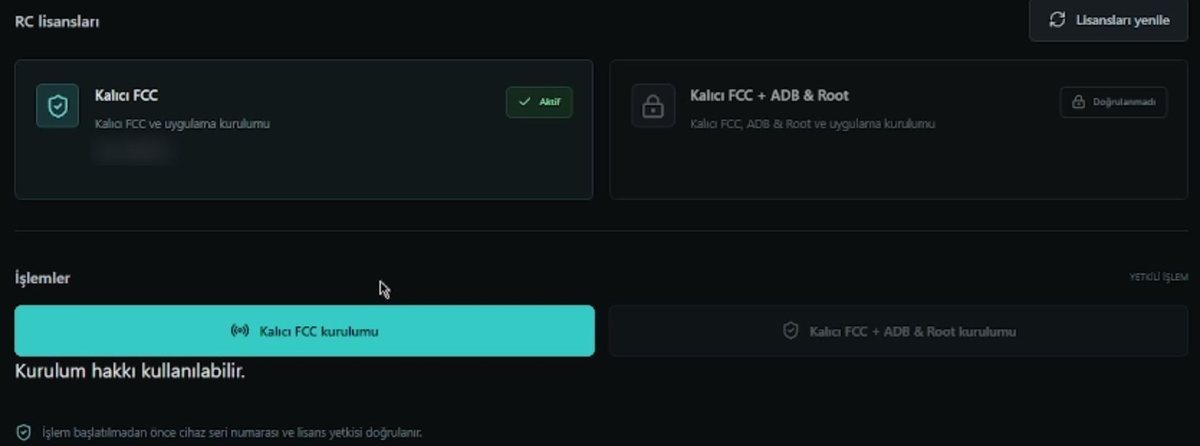
- In the RC licences section, the licence you purchased should show Active next to it. If it does not appear, press the Refresh licences button.
Step 6 — Start the installation
- In the Actions section, press the button that matches your licence: Permanent FCC installation or Permanent FCC + ADB & Root installation.
- Installation takes a few minutes. During this time, do not unplug the cable or turn off the controller.
- When installation is complete, LabDron DJI Fly appears in the controller's app list. You can unplug the cable.
Step 7 — Open LabDron DJI Fly
- Open the LabDron DJI Fly app on the controller.
- On the licence sign-in screen, enter the app username and password shown on labdron.com under My Account → My Activations, then tap the sign-in button. Your website email and password do not work here.
- On first launch the app prepares its data; wait until the percentage indicator is full.
- On the permissions screen, tap Authorize all.
- The LabDron home screen opens. Turn on your drone and connect it to the controller; FCC is now permanently enabled.

Having trouble?
- Controller not found: Make sure the controller and the computer are on the same Wi-Fi network. Turn off guest networks and VPN connections, then press the Search LAN button.
- Firmware warning: Update the controller to version 01.03.2600 with DJI Assistant 2 and reopen the program.
- Licence not showing: Make sure you are signed in with the account you used for the purchase and press the Refresh licences button.
- Different serial number: Do not start the process; contact our support line.